ffmpegcolorspace ! video/x-raw-yuv,format=(fourcc)YV12 ! xvimagesink
videobalance hue=-1 ! autovideosink
Friday, June 27, 2008

Thursday, November 22, 2007
Final Fantasy Crisis Core VII
Final Fantasy Crisis Core VII


Click Here To Download Part 1
Click Here To Download Part 2
Click Here To Download Part 3
OR Link (Copy & Paste This Into Your Browser):
Code:
Part 1:http://www.megaupload.com/?d=DWTYFO8D
Part 2:http://www.megaupload.com/?d=IEJ9PTRZ
Part 3:http://www.megaupload.com/?d=WAIFM2RQ
Powered by ScribeFire.
Saturday, November 17, 2007
Crisis Core FinalFantasy VII JAP FULL ISO 1.66 GB


Part 1 : http://mihd.net/onj19d [Rar: 200 MB]
Part 2 : http://mihd.net/d6x1jo [Rar: 200 MB]
Part 3 : http://mihd.net/eq5ip3 [Rar: 200 MB]
Part 4 : http://mihd.net/xzmnp2 [Rar: 200 MB]
Part 5 : http://mihd.net/4pyj92 [Rar: 200 MB]
Part 6 : http://mihd.net/cd9s0h [Rar: 71.2 MB]
Password : hako
Ripped : nothing
If CSO : 1.21 GB
Tested and working 3.52 M33 (3.40 OE-A working)
Powered by ScribeFire.
Thursday, September 27, 2007
3.71 M33 Install Guide
Here is a step by step guide for installing 3.71 M33. Please note that you must be running 3.52 M33-3, 3.52 M33-4 or 3.60 M33 to begin this installation.
Note: Before installing 3.71 M33, be warned that it currently is lacking the 1.50 kernel, even on regular (Phat) PSPs. Dark_AleX does plan to release a 1.50 kernel patch within the next few days, but for now you can use the eLoader to run 1.50 kernel homebrew on 3.71 M33.
First grab the 3.71 M33 files and extract them.
1. Copy the UPDATE folder contained in the archive to X:/PSP/GAME
2. Download the 3.71 EBOOT, and then place it in X:/PSP/GAME/UPDATE
3. Navigate to the Game menu on the PSP and execute the program, it will not run unless there is 78 percent battery free.
4. Press X and the update process will start. Yes it may look similar to a regular Sony update but don't worry!
5. Once finished, the updater will ask you to press X or O to reboot. You MUST do this, otherwise you'll end up with a brick.
6. You've now successfully installed 3.71 M33 ;)
Note: Before installing 3.71 M33, be warned that it currently is lacking the 1.50 kernel, even on regular (Phat) PSPs. Dark_AleX does plan to release a 1.50 kernel patch within the next few days, but for now you can use the eLoader to run 1.50 kernel homebrew on 3.71 M33.
Installation Guide
First grab the 3.71 M33 files and extract them.
1. Copy the UPDATE folder contained in the archive to X:/PSP/GAME
2. Download the 3.71 EBOOT, and then place it in X:/PSP/GAME/UPDATE
3. Navigate to the Game menu on the PSP and execute the program, it will not run unless there is 78 percent battery free.
4. Press X and the update process will start. Yes it may look similar to a regular Sony update but don't worry!
5. Once finished, the updater will ask you to press X or O to reboot. You MUST do this, otherwise you'll end up with a brick.
6. You've now successfully installed 3.71 M33 ;)
PSP Custom Firmware 3.71 M33 Released
Team M33 has just released PSP custom Firmware 3.71 for both PSP "Phat" and PSP Slim.
You can get it here: http://forums.exophase.com/showthread.php?t=3661
You can get it here: http://forums.exophase.com/showthread.php?t=3661
Powered by ScribeFire.
Thursday, September 20, 2007
Disable USB Flash Drives
Update 1/18/2007 11:01 PM EST: I have
received a few questions about this method - no it will not disable mice, or keyboards. It only disables storage devices attached to the USB port. This includes hard drives, flash drives, and any other type of USB storage device. And yes, if the user has administrator access they can reverse the changes.
 | Our USB Flash drive enable/disable program has been out for quite a while now. Recently we have been getting bug reports that it no longer works. |
How it operates is simple, we set a registry key that tells the UsbStor driver not to load on boot:
HKEY_LOCAL_MACHINE\SYSTEM\CurrentControlSet\Services\UsbStor
Start = 4 (Disabled) - Don't start the driver on boot
Start = 3 (Enabled) - Start the driver on boot
If we visit Microsoft, this is an appropriate way to disable USB drives, they even recommend it as a group policy to disable USB, CDROM, and floppy drives:
http://support.microsoft.com/kb/555324
After loading about 10 different variations of Windows (2000, XP, 2003, and Vista with different service packs) in VMWare we started to see a clearer picture.
Some variations will simply reset the key 'Start' back to 3 when a new flash drive is plugged in. The first trick we tried was denying write access for the system account on the USBStor registry key.
It worked on everything except Windows 2003. This version of windows would reset permissions on the key - and delete it!. Then it would re-create with the USB storage enabled.
Then we came across this document:
http://support.microsoft.com/kb/823732
(Looks like it was published much later than KB 555324)
It tells us to put deny permissions for the users we want to lock out on UsbStor.inf, and UsbStor.pnf in the c:\windows\inf folder. Funny thing - it doesn't work. Windows XP will reset the permissions and let the user install their flash drive anyhow.
Now we could have created a filter driver that would sit between windows and usb storage, but we wanted something simple that an administrator could do without even using our program.
We found a simpler solution...rename the files. If we simply rename the files to UsbStor.inf.backup, and UsbStor.pnf.backup windows can no longer load the drivers for usb storage.
So to recap. Rename the files, set the registry key to 4, and users can no longer access any type of usb storage. Reverse the rename, and reset the registry key to 3 and users can access their usb storage again. Ahh. Almost forgot. Reboot required each time you switch.
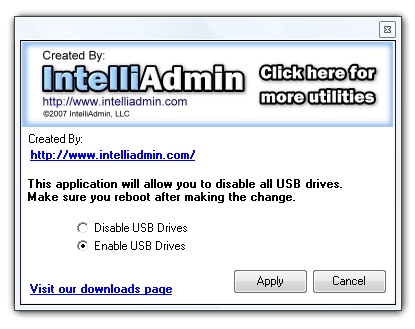
We have a few programs now that will do this for you. First the USB Disabler. It is for disabling, or enabling USB flash drives on the computer you run it from.
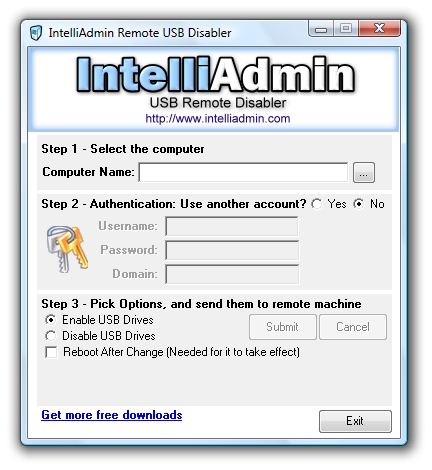
Second we have the remote USB flash disabler. It will allow you to pick a machine on your network and enable, or disable USB flash drives
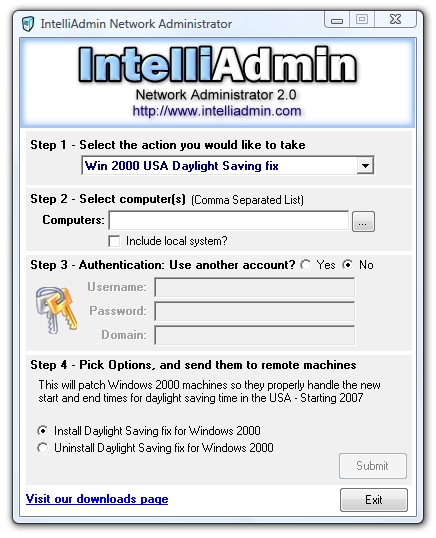
Third, our Network Administrator product can apply it to all the machines on your network.
They all can be found on our downloads page
Article grab from http://www.intelliadmin.com/blog/2007/01/disable-usb-flash-drives.html
Powered by ScribeFire.
How to disable the use of USB storage devices
Important This article contains information about how to modify the registry. Make sure to back up the registry before you modify it. Make sure that you know how to restore the registry if a problem occurs. For more information about how to back
up, restore, and modify the registry, click the following article number to view the article in the Microsoft Knowledge Base:
up, restore, and modify the registry, click the following article number to view the article in the Microsoft Knowledge Base:
256986 (http://support.microsoft.com/kb/256986/) Description of the Microsoft Windows registry
SUMMARY
This article discusses two methods that you can use to prevent users from connecting to a USB storage device.
When you do so, users cannot install a USB storage device on the computer.
To assign a user or group Deny permissions to the Usbstor.pnf and Usbstor.inf files, follow these steps:
To Disable the Use of USB Storage Devices
To disable the use of USB storage devices, use one or more of the following procedures, as appropriate to your situation:If a USB Storage Device Is Not Already Installed on the Computer
If a USB storage device is not already installed on the computer, assign the user or the group Deny permissions to the following files:- %SystemRoot%\Inf\Usbstor.pnf
- %SystemRoot%\Inf\Usbstor.inf
When you do so, users cannot install a USB storage device on the computer.
To assign a user or group Deny permissions to the Usbstor.pnf and Usbstor.inf files, follow these steps:
- Start Windows Explorer, and then locate the %SystemRoot%\Inf folder.
- Right-click the Usbstor.pnf file, and then click Properties.
- Click the Security tab.
- In the Group or user names list, click the user or group that you want to set Deny permissions for.
- In the Permissions for UserName or GroupName list, click to select the Deny check box next to Full Control, and then click OK. Note In addition, add the System account to the Deny list.
- Right-click the Usbstor.inf file, and then click Properties.
- Click the Security tab.
- In the Group or user names list, click the user or group that you want to set Deny permissions for.
- In the Permissions for UserName or GroupName list, click to select the Deny check box next to Full Control, and then click OK.
If a USB Storage Device Is Already Installed on the Computer
Warning Serious problems might occur if you modify the registry incorrectly by using Registry Editor or by using another method. These problems might require that you reinstall your operating system. Microsoft cannot guarantee that these problems can be solved. Modify the registry at your own risk. If a USB storage device is already installed on the computer, set the Start value in the following registry key to 4: HKEY_LOCAL_MACHINE\SYSTEM\CurrentControlSet\Services\UsbStor When you do so, the USB storage device does not work when the user connects the device to the computer. To set the Start value, follow these steps:- Click Start, and then click Run.
- In the Open box, type regedit, and then click OK.
- Locate, and then click the following registry key:HKEY_LOCAL_MACHINE\SYSTEM\CurrentControlSet\Services\UsbStor
- In the right pane, double-click Start.
- In the Value data box, type 4, click Hexadecimal (if it is not already selected), and then click OK.
- Quit Registry Editor.
APPLIES TO
| • | Microsoft Windows XP Home Edition |
| • | Microsoft Windows XP Professional |
| • | Microsoft Windows 2000 Advanced Server |
| • | Microsoft Windows 2000 Professional Edition |
| • | Microsoft Windows 2000 Server |
| • | Microsoft Windows Server 2003, Enterprise Edition |
| • | Microsoft Windows Server 2003, Standard Edition |
Powered by ScribeFire.
Subscribe to:
Posts (Atom)

